
Quick: When was the last time you thought about the keyboard app on your phone?
If you’re like most people, the answer is probably somewhere between “a ridiculously long time ago” and “never.” And it’s no wonder: Keyboard apps are easy to forget! You install one — or stick with whatever came loaded on your phone by default — and then use it to input text when you need to. It’s just there, and unless you’re a weirdo who spends hours trying out different keyboards to see how they compare (and then trying ’em all out again months later to see how they’ve evolved and what other options have come along), you’re never gonna know what you’re missing.
Well, good news, my friend: I am that weirdo. Somehow, it’s my job. (Crazy, right?) And I’ve just finished assessing all of the significant Android keyboard apps in their current incarnations to see what they have to offer in 2026 and how they stack up.
Lemme tell ya: These once-unassuming typing tools have come a long way. The top Android keyboard apps now offer almost absurdly polished and refined text input experiences — and that’s just the tip of the iceberg. Android keyboards today are overflowing with all sorts of advanced functions that go way beyond their original purposes. And that means it’s more important than ever to find the right setup for your personal productivity needs.
So let’s get into it, shall we? These are the best Android keyboard apps around, broken down by where they excel and for whom they make the most sense.
The best all-around Android keyboard app for most people
Gboard – the Google Keyboard (free)
If you just want a solid, thoughtfully designed keyboard that works well and is pleasant to use, Google’s own Gboard is tough to beat. Gboard is great for accurate swipe-based typing — where you slide your finger from one letter to the next without lifting it — and it does a decent job at tap-oriented typing, too, with its built-in typo correction and next-word prediction capabilities.
Beyond the basics, Gboard supports a variety of potentially useful advanced productivity features. For instance, you can take a photo of a physical paper or whiteboard from right within the keyboard and then insert its words directly into any active text field on your screen. You can also activate an integrated Google Translate mode that’ll translate anything you type from one language to another on the fly.
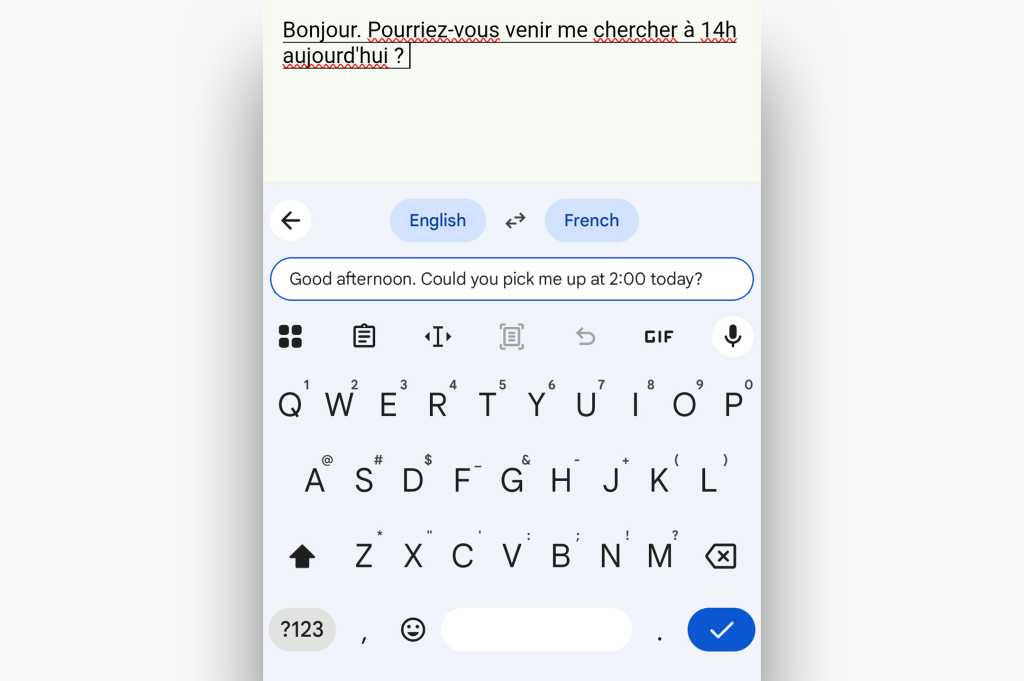
On-the-fly language translation is one of Gboard’s handy advanced features.
JR Raphael / Foundry
Other noteworthy elements include a handwriting mode, which transforms your on-screen scribbles into regular text as you write; a floating keyboard layout, which makes it easier to access the keyboard on a large-screened device; a built-in clipboard, which makes it quick ‘n’ simple to find and paste any recently copied content or permanently pinned items; a text selection tool that lets you use arrow keys to move your cursor around to any specific spot on your screen; and a series of other advanced options and hidden shortcuts for extra-speedy text input.
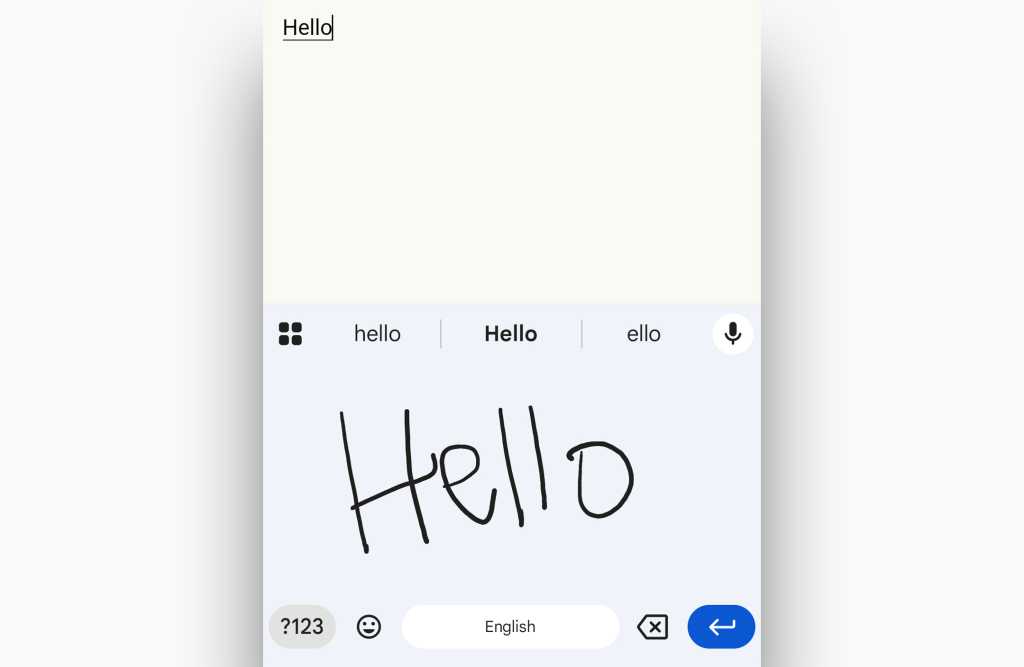
Gboard can interpret even the messiest handwriting and turn it into regular digital text on the fly.
JR Raphael / Foundry
Whether you take advantage of all those possibilities or not, though, Gboard is a well-rounded keyboard that lets you type quickly, accurately, and with minimal hassle on your Android phone. If you don’t have any special requirements and just want a commendable all-around keyboard that gets the job done, Gboard is the app for you.
The best Android keyboard app for simple Windows syncing
Microsoft SwiftKey AI Keyboard (free)
If you’re using Android alongside a Windows computer and like the idea of seamless text sharing across your devices, the now-Microsoft-owned SwiftKey is the Android keyboard app you want. The reason why is simple: SwiftKey and SwiftKey alone offers the ability to sync your Android and Windows clipboards — meaning you can copy something on one device and then instantly paste it on the other, without any extra effort or actions. All it requires is an easy one-time setup to get going.
That alone is a pretty compelling perk, but SwiftKey is also no slouch when it comes to regular on-screen Android typing — especially with its exceptional next-word prediction engine, which is something that’s been one of the keyboard’s greatest strengths since back before Microsoft owned it.
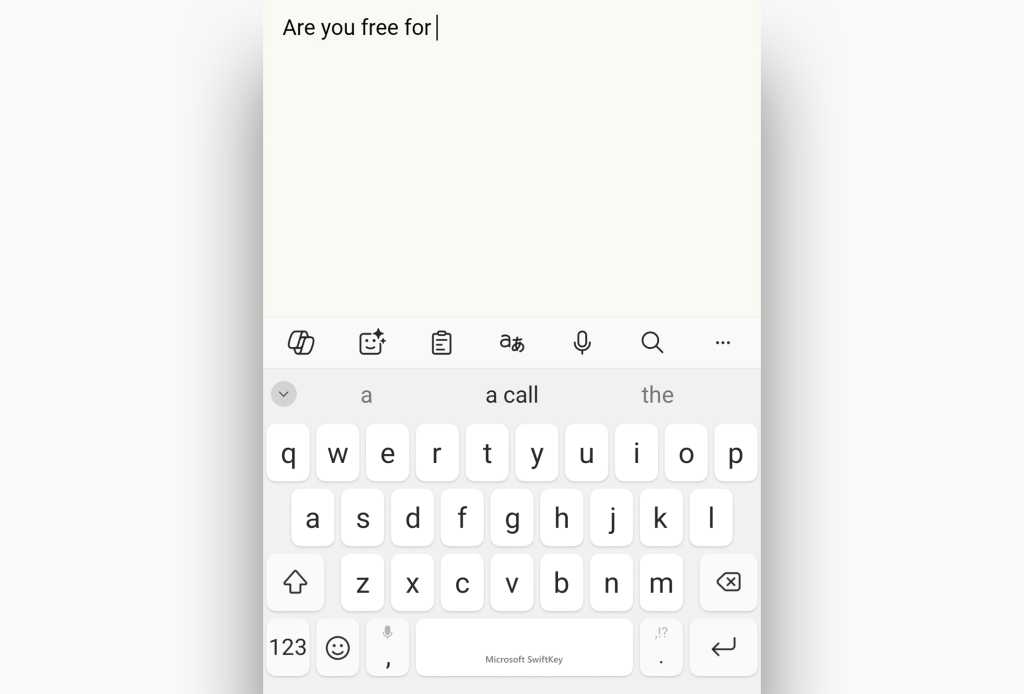
Microsoft’s SwiftKey excels at tap-based typing and text prediction.
JR Raphael / Foundry
SwiftKey has plenty of other bells and whistles, too, including many of the same mode and input options as Gboard, along with an all-in-one “multi-modal” setting that lets you dictate text while still being able to actively use your on-screen keyboard for manual typing. Some of its more interesting options from the past have been phased out over time, unfortunately, while plenty of eye-roll-inducing elements — like integrated shortcuts for Bing Search and Copilot along with some Microsoft Rewards madness — have made their way into the keyboard.
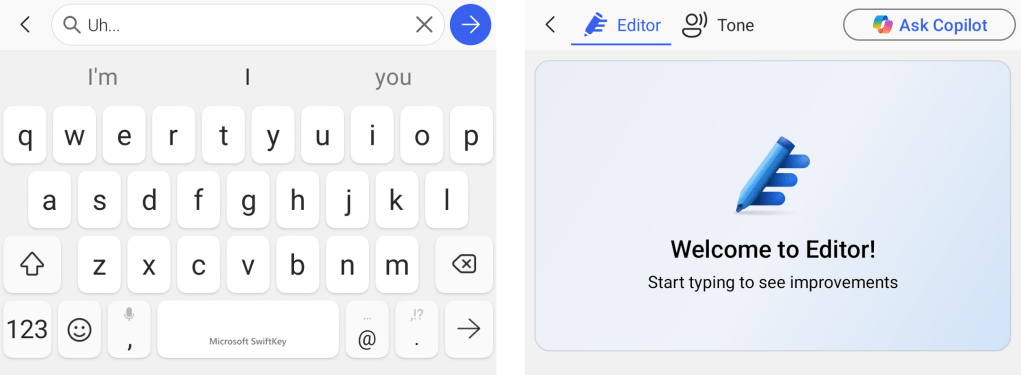
SwiftKey has an integrated Bing Search bar that just opens up Bing in your browser and a Copilot button that takes you to the Play Store to download the Copilot app.
JR Raphael / Foundry
The keyboard also, not surprisingly, relies mostly on Microsoft services over Google services by default for things like search and translation — which may be a positive, a negative, or a neutral, depending on your perspective.
Provided you’re willing to overlook all the crud Microsoft’s cramming into the keyboard nowadays, though, it’s actually a quite polished and viable alternative to Gboard — if a touch less impressive as an overall package — and its Windows clipboard syncing is a genuinely compelling and completely unique feature. If that holds a lot of appeal for you or you’re just heavily invested in the Microsoft ecosystem and want your Android experience to revolve around that universe, it’s well worth giving a whirl.
The best Android keyboard app for writing perfection
Grammarly AI Writing Assistant (free with optional $140-a-year subscription for premium features)
Our next Android keyboard app isn’t actually a keyboard in and of itself but rather a companion app that you’d use alongside another Android keyboard — like the two we just went over.
Grammarly, as its name suggests, is focused on watching your words and making intelligent suggestions about your grammar, spelling, and other potential issues as you enter text on your phone. And while it originally came in the form of a full-fledged Android keyboard, it’s now an extra layer that appears above whatever primary keyboard you prefer.
That implementation is actually quite thoughtful and clever, too, as it lets you enjoy the ever-evolving features and capabilities of a standout Android keyboard like Gboard or SwiftKey while also benefitting from Grammarly’s exceptional on-the-fly editing prowess. Those suggestions appear via a floating “G” bubble (for, y’know, Grammarly) that hovers just above your keyboard’s upper-left corner. Notably but not obviously, that bubble can be repositioned as you see fit if you press and hold your finger onto it and then drag it anywhere else on the screen.
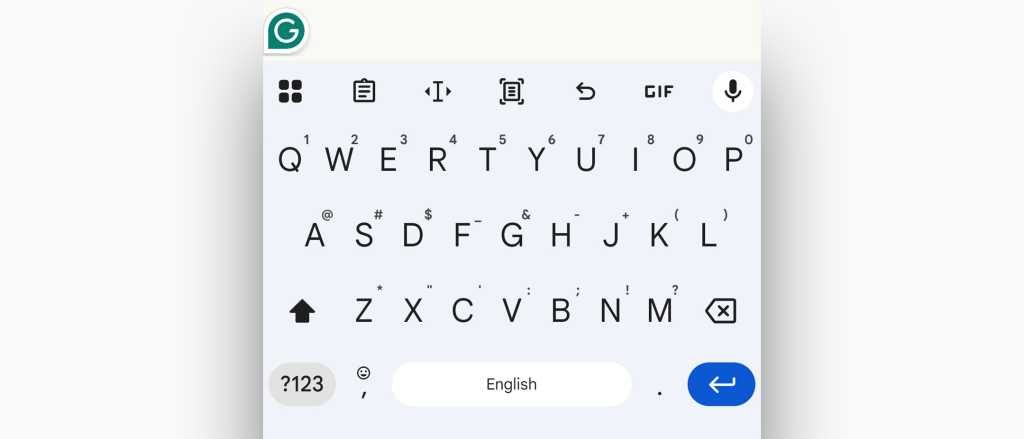
Grammarly, in its resting state — as a simple floating bubble just above your regular Android keyboard.
JR Raphael / Foundry
Then, as you’re typing — in any app, anywhere on your device — Grammarly pops up corrections and suggestions alongside that bubble, which you can opt to accept or ignore. Even when it comes to something as simple as a misspelled word, it outshines other keyboards by making sure an error catches your attention both while you’re actively typing and after you’ve moved past the problematic text, thanks to its lingering presence in that easily visible bubble. And it does the same with grammatical issues, too — something most other keyboards attempt only if and when you actively seek out the feature.
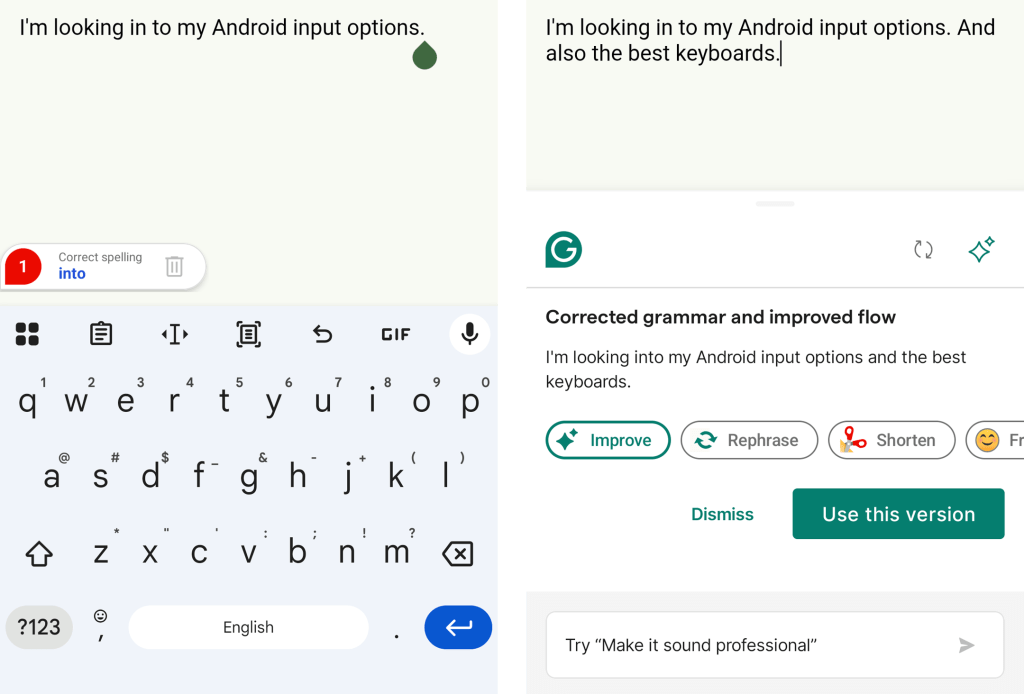
Grammarly pops up tap-to-accept corrections as you write and also notifies you of broader corrections in both grammar and tone.
JR Raphael / Foundry
There is, inevitably, an AI element now as well, wherein you can provide specific prompts for how you want Grammarly to rewrite your words — making something shorter, more descriptive, more professional, and so on. And that’s fine. But it’s also something that most other keyboards and writing surfaces in general also now offer, whether you want it or not.
Where Grammarly shines is in the basic ongoing guidance it gives you alongside your existing Android keyboard adventure. And that piece of the puzzle is also free to use, though there is an optional $140-a-year premium subscription that adds in more elaborate rewriting options along with a similar set of benefits across Grammarly’s desktop browser extensions and app-specific integrations.
The best Android keyboard app for voice typing
Wispr Flow (free — for now)
No matter what Android keyboard you’re using, the recently released Wispr Flow Android app will bring a phenomenally powerful upgrade to your Android voice typing experience.
With Wispr Flow installed, anytime your keyboard is active, you’ll see a small floating-bubble icon directly above its keys. All you do is tap it and start talking — or hold it down, if you’d rather — and the app will intelligently interpret whatever you’re saying, eliminate any errors or redundancies, and put your words into neatly formatted text.
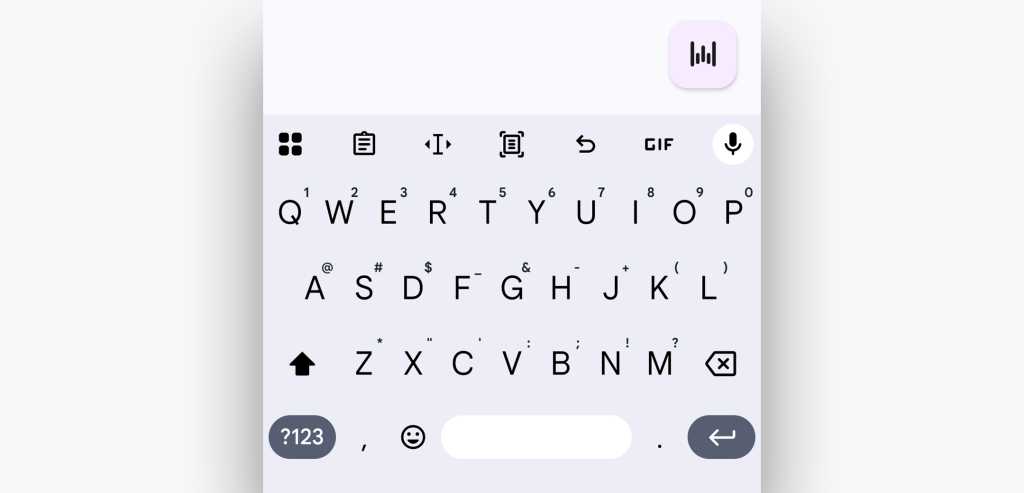
Wispr Flow is just a small icon that appears above whatever regular keyboard you’re using, whenever it’s active.
JR Raphael / Foundry
It does this at a level that no regular Android keyboard even comes close to matching — with instant and near-flawless transcription, automatic formatting and punctuation, and the ability to both eliminate inadvertent interjections and interpret and process deliberate corrections spoken as you go.
[ Related Q&A: Wispr CEO: What a post-keyboard office might look like ]
Wispr Flow stays open and active for as long as you’re talking, too — even with long, extended pauses — and, true to its name, it works work well even with whispered input for more sensitive (or maybe just courteous) public dictation, which is an area where most traditional voice input systems struggle. It also supports multilingual input and will automatically detect a change in your language and continue to transcribe flawlessly even as you switch dialects.
Wispr Flow is completely free to use on Android for now, as a part of its launch. At some point, it’ll shift into the standard Wispr Flow model, which allows up to 1,000 dictated words per week for free or unlimited use with a $144-a-year Pro plan that stretches across multiple platforms and device types and also includes multi-user team collaboration features.
The best Android keyboard app for privacy and simplicity
Simple Keyboard (free)
On the flip side to the more elaborate Android keyboard options is the bare-bones, basic-as-can-be Simple Keyboard — an app whose name tells you much of what you need to know about the experience it provides.
Simple Keyboard gives you, yes, a simple keyboard, with support for tap-based typing — and that’s pretty much it. There’s no text correction system, no next-word prediction, and no support for swipe-oriented input. There’s not even access to any sort of voice-to-text system, which every other app in this list provides. Heck, aside from a humble set of simple options, Simple Keyboard has no bells and whistles whatsoever. It is, quite simply, a keyboard. And that’s all it aspires to be.
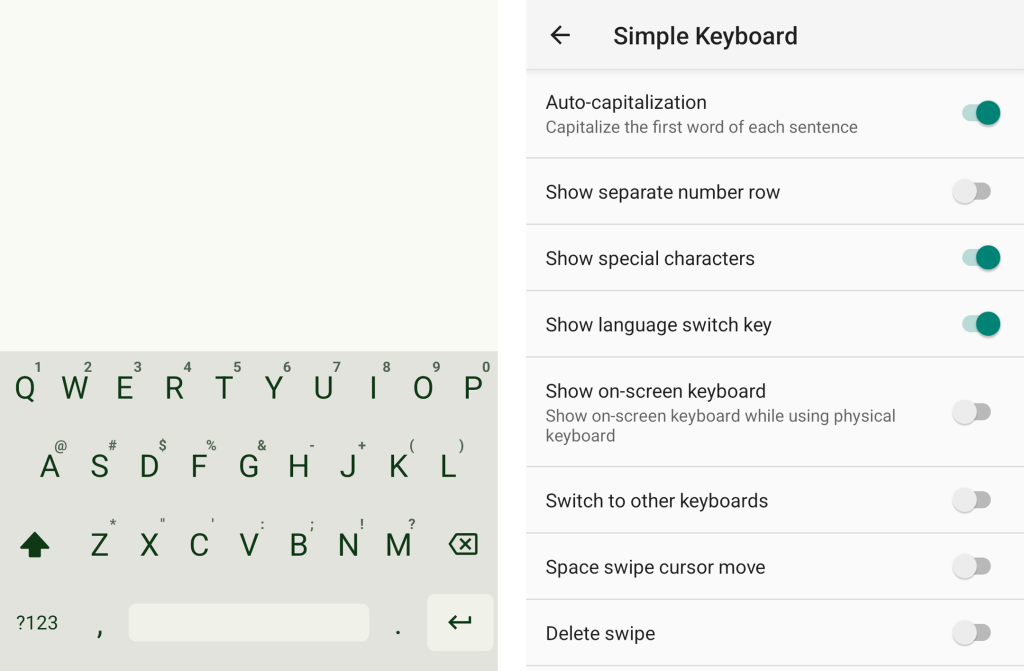
The aptly named Simple Keyboard has a limited range of options — which in and of itself is essentially the app’s defining feature.
JR Raphael / Foundry
So why would you want such a frills-free typing experience when so many rich, feature-laden alternatives exist? Well, you might not want any of those added elements, for one, and might be content to have something that just lets you tap in words as needed. But perhaps more prominently, Simple Keyboard’s lack of lofty ambitions gives it one powerful feature no other keyboard can match: privacy — built in at its core, with a ground-level assurance that nothing you type could ever be transmitted off your device by the keyboard itself.
Pretty much every other Android keyboard app, y’see, requires perpetual network access in order to operate. And while most of the major players say they’ll never do anything nefarious with your data, there’s no denying that they do at the very least have the ability to observe and transmit it. (The need for internet access can be explained in a variety of perfectly legitimate ways, including the ambitious options those apps have for performing internet searches and even just learning your typing habits over time in order to provide better predictions — but still, if maximum privacy is a top concern of yours, that may not be enough to make it acceptable.)
Simple Keyboard, in contrast, requests no level of network access. In fact, the app doesn’t request any permissions or special forms of access at all. That means there’s no realistic way the app can log what you’re typing and then transfer that data off of your device — for any reason. The program’s code is even completely open source, if you’re tech-savvy and want to confirm exactly what it’s doing.
Most people will prefer the added creature comforts offered by the other apps in this list, but for the privacy-conscious and simplicity-seeking among us, Simple Keyboard is a valuable and unusual contender that plays an important role in this keyboard collection.
This article was originally published in March 2019 and most recently updated in March 2026.